
Quick answer
Click inside the player. Use WASD to move, the mouse to look and left click to drink. Space jumps, 1–3 selects tools, and Tab releases the mouse. On a phone, use touch controls and hold DRINK near the water.
PC Keyboard and Mouse Controls
These are the Drink the Ocean controls published by Playgama. They apply inside the focused game, rather than to the surrounding website. In particular, the keyboard shortcuts will not reliably reach the game while your focus is on a page link, browser bar or another tab.
| Input | Action | Useful context |
|---|---|---|
| W / A / S / D | Move | Approach the shoreline, PRESS or SHOP |
| Mouse movement | Look around | Face the water or your destination |
| Left click | Drink through the straw | Aim at water within reach |
| Space | Jump | Use while moving around the world |
| 1 / 2 / 3 | Switch tools | Choose among tools available in your game |
| T | Go home | Use the game’s home shortcut |
| E | Open the duck’s gifts | View the Sky Duck’s gifts |
| P | Settings | Open the in-game settings |
| Tab | Free the mouse | Return the pointer to the webpage |
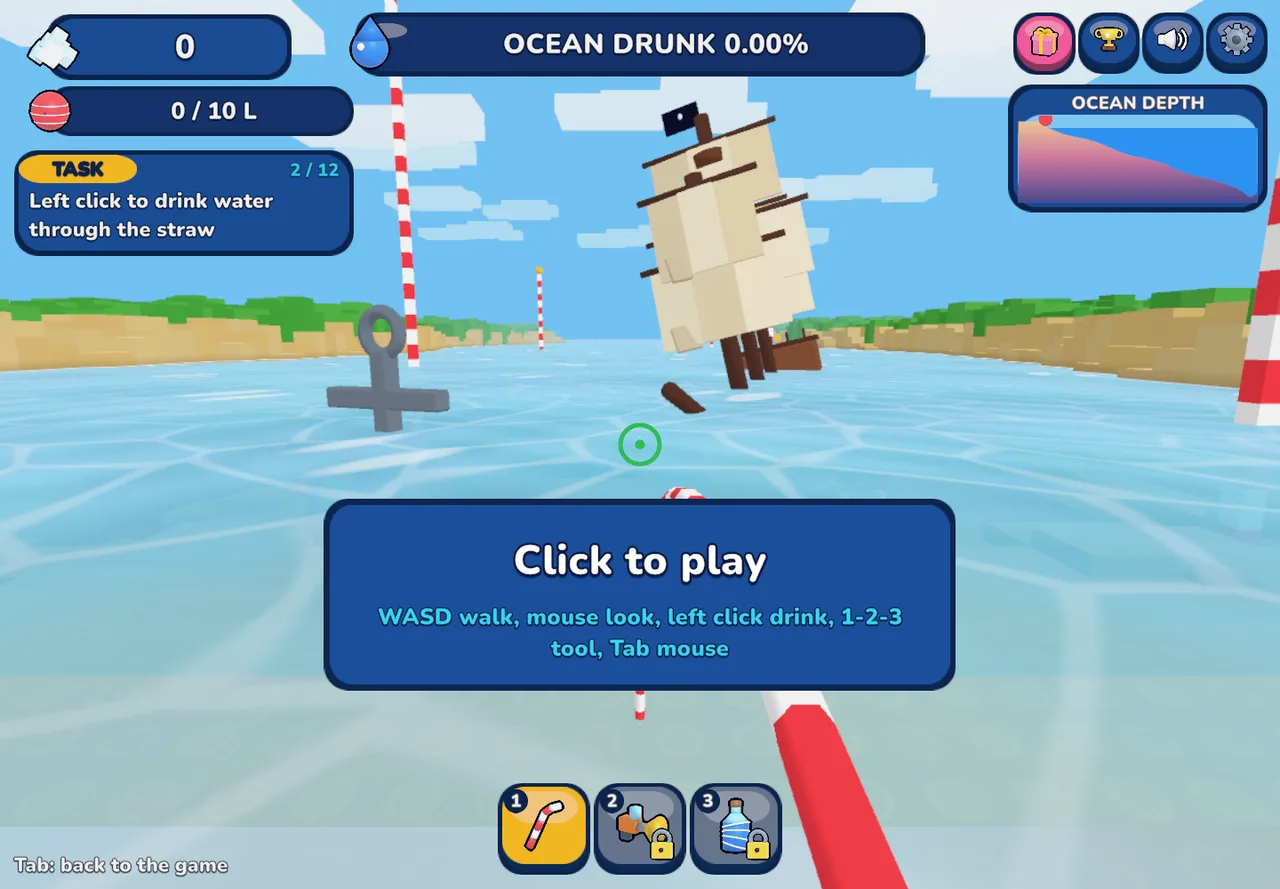
Make Sure the Game Has Focus
Click the play prompt inside the embedded game, then click within the 3D view if input is still going to the page. Try a short movement with W before combining several inputs. This separates a focus problem from a movement or gameplay problem.
If an input opens a browser command or scrolls the page, return to the game and try again. Fullscreen can provide more room, but it is not a substitute for focus: opening the larger player does not automatically prove that the game received your next keypress.
Mobile Touch and DRINK Controls
The mobile drinking instruction is to hold the DRINK button. Use the on-screen movement and look controls rather than expecting a physical keyboard to be necessary. Rotate to landscape so the world, action buttons and progress indicators have more room.
Do not assume that the keyboard layout describes the exact location of every touch button. The visible mobile interface is the best reference for your device. If a button is partly outside the view, leave browser zoom at its normal size and check landscape orientation before reloading.
| Task | On a phone |
|---|---|
| Move and look | Use the touch controls displayed inside the game |
| Drink | Hold the DRINK button near the water |
| Find a tool or menu | Use the visible game buttons; do not rely on keyboard labels alone |
| Make the view larger | Try landscape and browser-supported fullscreen |
Switching Tools Without Losing Your Place
Number keys 1, 2 and 3 are part of the desktop Drink the Ocean controls. Press a key, then look at the selected slot or tool in the HUD. A slot that is not yet available does not become usable simply because you selected its number.
If the action changes after switching tools, return to an available straw or tool and test again close to the water. A full belly can stop useful drinking even when the input is reaching the game correctly; that is a PRESS trip, not necessarily a broken key.
Release the Mouse and Leave Fullscreen
Press Tab when you want to use a link, change the player size or reach the page’s Reload control. The published function of Tab is to free the mouse. That is different from quitting the game or deleting a save.
Browser fullscreen and in-game pointer capture are separate states. Use the page’s Exit fullscreen button when it is available, or your browser’s normal exit command. After returning to the page, click inside the game again before testing movement.
When the Controls Still Do Not Respond
Work through the input checks before refreshing a running session. This order preserves the chance of continuing without discarding unsaved progress.
- 01
Test one input
Click inside the player and try W, then try mouse look. If both work, the main issue is probably narrower than keyboard focus.
- 02
Check the action’s conditions
For drinking, confirm that you are near water, looking at it, carrying space in your belly and using an available tool.
- 03
Inspect settings and screen layout
Use the in-game settings if accessible. On a phone, check orientation and the visible DRINK control. Browser zoom or a cramped window can hide useful interface elements.
- 04
Reload only after the simpler checks
Use the page’s confirmation dialog if the player is stuck. Reloading restarts the embed and may lose unsaved progress. Persistent blank-player problems belong in the loading guide.
Frequently Asked Questions
01Which button drinks water?
The published desktop Drink the Ocean controls use left click to drink through the straw. On phones, Playgama says to hold the on-screen DRINK button. Both require an appropriate water target and space to collect it.
02How do I unlock the mouse?
Press Tab. Once the pointer is released, use the surrounding webpage normally. Click back inside the game to resume keyboard and mouse control.
03Do the number keys unlock tools?
No. They select tool slots. You still need the relevant tool to be available through normal game progression or the SHOP.
04Will fullscreen fix a frozen game?
Fullscreen changes the presentation, not the game’s state. Use it for more space; use the loading and input checks to investigate a frozen or unresponsive player.
05What does T do?
Playgama labels T as Go home. This guide does not assign an unverified cooldown, unlock requirement or exact destination to that shortcut.
Sources & game credits
Gameplay descriptions refer to the linked provider. Game artwork belongs to its respective rights holders.