
Quick answer
Open the game in a mobile browser, turn the phone sideways and use the controls inside the player. Hold the on-screen DRINK button near the water. Playgama lists Android and iOS support, but browser and device behavior can vary.
iPhone, Android and Browser Play
The provider lists desktop, Android and iOS for this edition. For Drink the Ocean mobile play, start with the embedded browser player on the homepage or the original Playgama game page. The website itself does not provide a downloadable app.
A supported-platform label is useful guidance rather than a guarantee for every phone, operating-system version or browser. If the game opens but the touch interface is cramped, investigate orientation and viewport size before deciding that you need a different download.
Start a Mobile Session
Use a stable connection for the initial game load. A 3D browser game can take more time to appear than the surrounding guide text and images. Wait for the prompt inside the player rather than repeatedly refreshing while it is still loading.
- 01
Open the homepage player
Choose Play on this site and use the play prompt within the Playgama frame. Keep the browser tab active while the game starts.
- 02
Rotate to landscape
Turn the phone sideways and check whether orientation lock is preventing the change. This gives the world and action controls more horizontal room.
- 03
Use the visible touch controls
Move and look with the interface shown by the game. Approach the water, aim at it and hold DRINK to collect seawater.
- 04
Finish the same salt loop
When full, return under the PRESS and then use the blue SHOP pad. Touch input changes the way you control the character, not the basic currency loop.
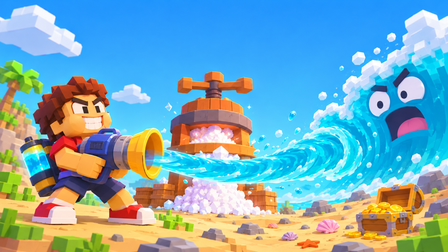
Touch Controls and the DRINK Button
The specific mobile drinking instruction published by Playgama is to hold DRINK. The keyboard’s left click is the desktop equivalent, not a requirement to connect a mouse. Look at the actual on-screen controls for movement, looking, menus and tool selection.
If DRINK does not seem to work, check the same gameplay conditions as on desktop: you need reachable water, a suitable target and room in the belly. A full meter calls for a return to the PRESS. Repeatedly holding the button while looking at dry ground will not solve that problem.
| Task | Mobile approach |
|---|---|
| See the world and controls | Landscape orientation; normal browser zoom |
| Collect seawater | Hold DRINK near water |
| Return to the page | Use the browser or player controls visible on your device |
| Choose a tool | Follow the on-screen tool interface; use only available tools |
Fullscreen and the Size of the Player
Try the page’s Fullscreen control if your browser supports it. Fullscreen availability varies, so an unavailable control does not by itself prove that the game cannot run. Landscape orientation is still useful even when browser chrome remains visible.
If the controls are clipped, restore normal page zoom and inspect the player again. Avoid stretching or zooming the webpage to chase a single hidden button. Close overlays that you intentionally opened, and return to the game view before testing touch input.
If Mobile Play Is Slow or Blank
Close other resource-heavy games or video tabs, let the initial load finish and try a normal-sized player before using fullscreen. If a blank frame persists, test the original Playgama link to distinguish the embedded view from the provider’s own page.
Use the same browser and profile if you are hoping to continue an existing run. Clearing site data, changing browsers or using a private session may affect stored progress. Check saving behavior before making those changes; this site cannot recover the provider’s game data.
Do You Need an APK or App Store Download?
No installer is needed to use the browser player provided here. A search result mentioning a similar game or an app-store badge elsewhere does not verify that a download belongs to this particular Playgama edition.
For Drink the Ocean mobile, the simplest starting point is the known provider page. If a downloadable edition is important to you, follow a link from the identified developer or platform and compare the developer, screenshots and game loop. Do not assume shared saves between an app and a browser game.
Frequently Asked Questions
01Can I play Drink the Ocean on iPhone?
Playgama lists iOS support. Open the browser edition, use landscape and the displayed touch controls. Compatibility and fullscreen behavior still depend on the device and browser.
02Where is the DRINK control?
Look inside the mobile game interface. Playgama says to hold the DRINK button, but this guide does not promise the same button position on every screen layout.
03Does mobile use a different salt system?
The Playgama description uses the same collection → PRESS → salt → SHOP loop. Touch controls change the input, not the basic route explained in the beginner guide.
04Will a private tab fix loading without consequences?
A private tab can provide a separate test session, but it may not have access to your existing game progress. Do not treat it as a guaranteed way to restore or transfer a save.
Sources & game credits
Gameplay descriptions refer to the linked provider. Game artwork belongs to its respective rights holders.