
Quick answer
Check your connection, allow the embedded player time to start and click inside the game for keyboard focus. If the player stays blank, compare it with the official Playgama page. Avoid clearing browser storage as a first step: it can remove locally stored progress.
First, Identify What You Can See
A page that loads successfully does not prove that the separate game player has finished loading. This site supplies the page and controls around an embedded Playgama game; the provider supplies the game itself. Text and images can appear while the player is still waiting on another request.
Look at the player rather than repeatedly clicking Reload. A loading indicator, an advertisement, a visible game scene and a browser error each point to a different next step. Record any message before changing the session.
| Symptom | First check |
|---|---|
| The entire site will not open | Check the address and whether other websites load |
| Site text appears, but the player is blank | Wait for the embedded content, then compare the provider page |
| The game is visible, but keys do nothing | Click inside the game and check input focus |
| The game starts, then runs slowly | Reduce other browser activity and check the device |
| Only fullscreen fails | Try the embedded view and review browser support |
If the Player Stays Blank
Check whether other websites open normally on the same connection. A restricted school, work or managed network may treat a game provider differently from this site. Follow the network’s rules; do not disable device protections or bypass an administrator’s restrictions.
If the provider shows a loading screen or an advertisement, allow that stage to finish and use only its visible controls. A blocked third-party request can prevent an embedded game from starting, but a blank area alone does not identify which request failed.
You can compare the game on its official Playgama page using the source link below or the player’s provider link. If it works there but not here, report an embedding problem. If neither starts, the result still does not prove a widespread provider outage.
If the Game Loads but Input Fails
Click inside the player before using WASD or the mouse. Keyboard shortcuts sent while focus is on a navigation link or another part of the page may affect the page instead. Close any visible game menu that is intercepting input.
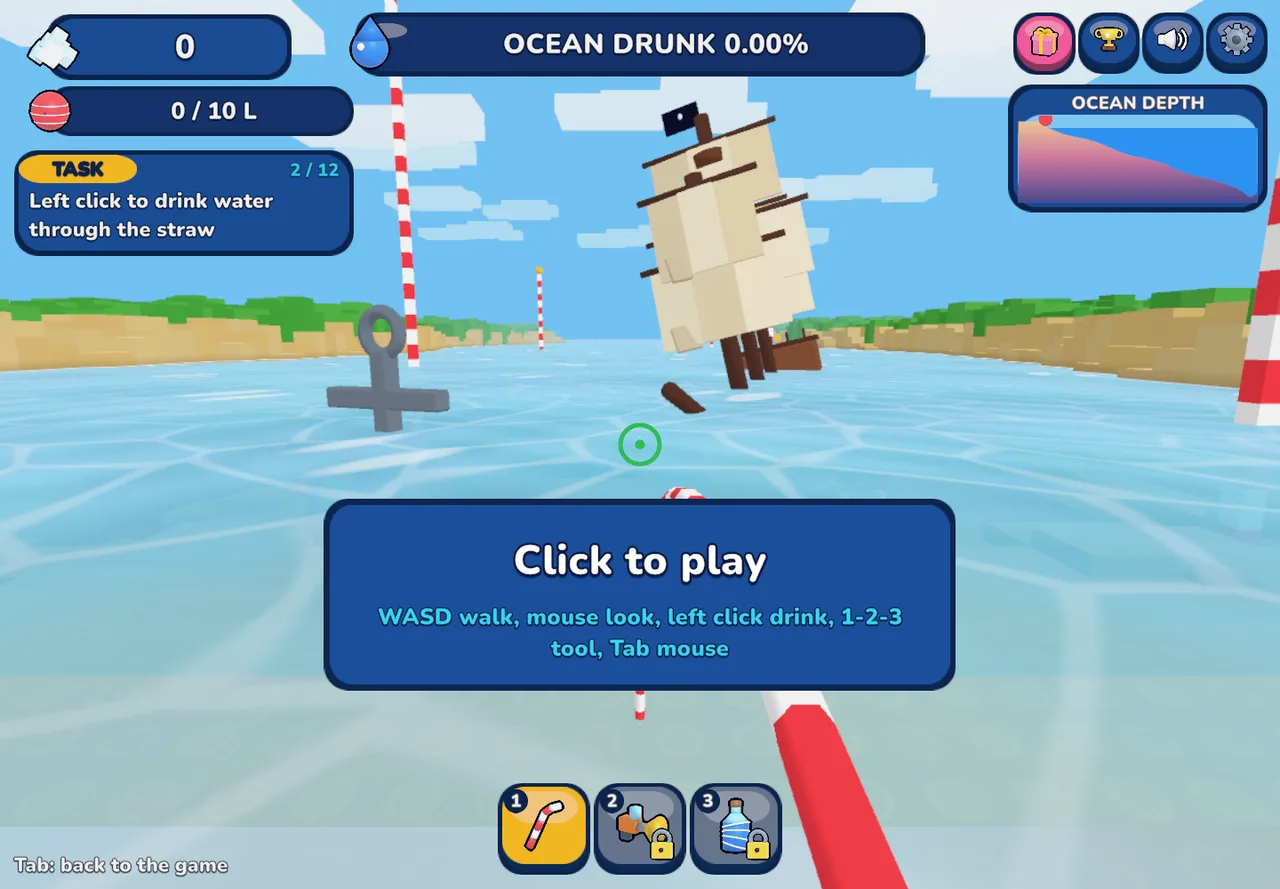
Drink the Ocean controls include Tab to release the mouse and P for game settings. After using the surrounding page, click back into the game to resume. On a phone, use the game’s displayed touch controls; desktop key instructions do not create touch buttons.
If the Game Stutters or Stops Responding
Close unnecessary tabs or other resource-heavy applications, then check whether performance improves. On a phone, stop other intensive tasks and let the device cool if it is becoming hot. These are general troubleshooting checks, not a guarantee for every browser or handset.
Use an up-to-date browser supported by your device. If the game offers graphics or performance settings, change one option at a time and compare. Avoid installing a download, browser extension or so-called booster just because a search result promises to fix the game.
Before Reloading or Clearing Data
The Reload button restarts the embedded player and displays a confirmation. Unsaved progress may be lost. If the game is still usable, follow any save guidance it actually provides before restarting; this site cannot read or back up the provider’s save data.
Clearing cookies or site storage can remove local game data or preferences. A private window is a separate test session and may not show an existing save. Try these only when you understand that consequence, rather than treating them as automatic recovery tools.
- 01
Note the symptom
Keep the error wording and identify whether the failure happens before loading, at the opening screen or during play.
- 02
Try one change
Refocus the player, check the connection or reduce competing activity. Compare before making another change.
- 03
Restart deliberately
If a restart is necessary, read the confirmation and accept the risk to unsaved progress.
- 04
Report useful details
Include the page URL, device, browser, symptom and whether the official provider page behaves differently. Never include passwords or payment information.
When Fullscreen Is the Only Problem
Fullscreen depends on browser and device support and normally requires a direct user action. Use the player’s fullscreen button where available. If the request is not supported, keep playing in the embedded view and try landscape orientation on a phone.
If you arrived here because Drink the Ocean is not loading, separate fullscreen failure from a genuinely blank player. Report them as different symptoms so the next troubleshooting step targets the actual problem.
Frequently Asked Questions
01Why is the game area black?
It may still be loading, waiting on provider content or failing to retrieve a required resource. Compare the official provider page and record any visible message before restarting.
02Will Reload keep my save?
That is not guaranteed. Reload restarts the player and can lose unsaved progress. Save behavior is controlled by the game and provider.
03Should I clear all cookies?
Not as a first step. Browser storage can contain progress or preferences. Start with connection, focus and provider-page checks.
04Can this site restore my game progress?
This site cannot access the embedded game’s save system. Contact the provider about save or account problems, and use our contact page for a broken page or embedding issue.
Sources & game credits
Gameplay descriptions refer to the linked provider. Game artwork belongs to its respective rights holders.